 |
PuTTYFree open-source SSH and Telnet client for Windows, Linux, and macOS |
||||||||||||||||
|
DownloadLatest VersionFree download · Windows installer · Linux & macOS portsPuTTY is a free, open-source terminal emulator and network client. Use it for interactive SSH and Telnet sessions, serial console access, and raw TCP connections. The Windows MSI bundles putty.exe, puttygen.exe, pscp.exe, psftp.exe, plink.exe, pageant.exe, and related tools in one install. For install steps, your first SSH session, and PuTTYgen basics, open the How to use page on this site. FeaturesHighlights that make PuTTY a popular choice for remote administration and development. Secure remote access:
Session management:
Companion tools:
Multi‑platform:
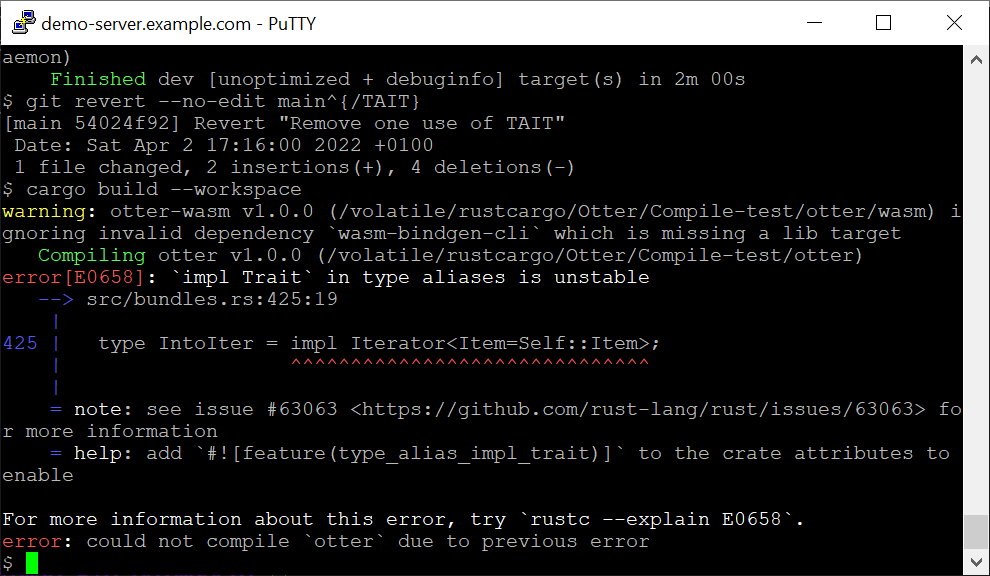
Technical referenceWhere PuTTY stores settings on Windows, common install commands, and first-connection checks. Use Copy to paste into documentation or a shell. Windows registry (session and host keys)On Windows, PuTTY saves configuration under Registry paths PuTTY uses (Windows)Unix-style data directoryOn Linux and other Unix ports, PuTTY often stores random seed data and session-related files under Typical paths (Linux / Unix)Install commands (package managers)Example install commandsPuTTY suite executables (Windows MSI)Installed binariesFirst-time connection tipsConfirm the server host name or IP, port (22 for SSH), and protocol. On first connect, check the host key fingerprint against your server documentation. Protect private keys with a passphrase and use Pageant or agent forwarding only on trusted machines. Typical PuTTY SSH workflowPrefer downloads from the official PuTTY project with published checksums. When using third-party mirrors or app stores, compare signatures where available. See PuTTYgen for SSH key setup. PuTTY screenshotsClick a thumbnail to enlarge, then use arrows to scroll left or right: |
||||||||||||||||
| PuTTY · download-putty.org · Free open-source SSH client and utilities. All rights
reserved. . |